What is vFairs?
vFairs is an all-in-one events platform that enables organizations, like AMA, to host virtual, in-person, and hybrid events of all types. The platform hosts custom branded event sites, streamlining the attendee journey.
- Go to amaactt.vfairs.ca
- Click the Login button.
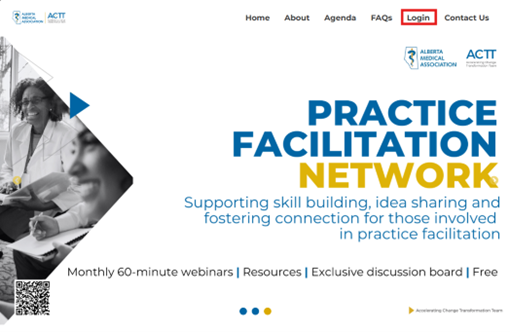
- You will be redirected to AMA’s single sign-on page.

- Enter your AMA credentials (email address and password).
- If you do not know your password, click on ‘Forgot your password?’ to answer your security questions and update your password.
- If you do not have an AMA account, contact [email protected] to register.
- After successfully logging in, you will be redirect to your vFairs lobby.
- Go to https://apps.albertadoctors.org/forgot-your-password
- Enter your email address.
- If your email address matches the email address in the AMA system, you will be prompted to enter answers to two security questions.
- If the answers match, you will be asked to update your password.
- If your email address does not match an email address in the AMA system, contact [email protected] to register for an AMA account.
Contact [email protected] to register.
- Complete a registration form for the network of your choice
- Once your membership has been updated, allow 1-3 business days for the update.
- You will receive an email notifying you once you have access to the request Network of Practice.
- Go to Sessions to view upcoming webinars.
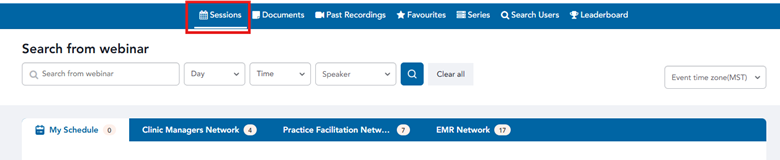
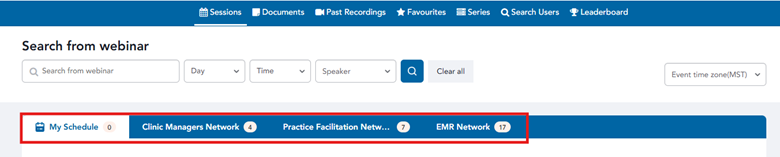
- Use the filter tabs to see sessions pertaining to a specific webinar series.
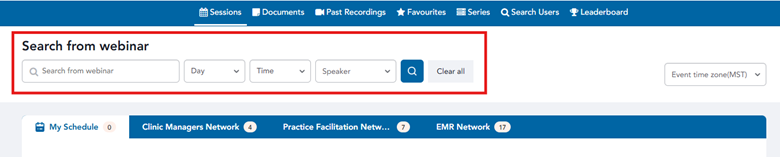
- Use the search function to find specific sessions.
- In the Sessions tab, click on the calendar icon beside the session you would like to add to your calendar.
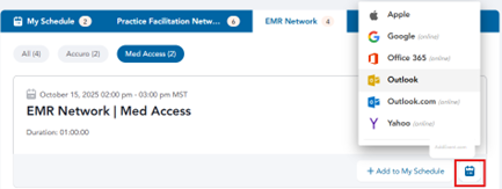
- If your browser is set to automatically open .ics files, the event may pop right into your calendar after you click the icon.
- If your browser does not automatically open .ics files, follow the steps below for your calendar:
- Apple Calendar (Mac or iPhone/iPad)
- Open the downloaded .ics file.
- It will open in Apple Calendar.
- Click Add to save the session to your calendar.
- Google Calendar (online) – If the calendar invite does not automatically get added
- Go to Google Calendar
- In the top-right, click the gear icon > Settings
- On the left, select Import & export
- Under Import, upload the .ics file and choose the calendar to add it to
- Click Import
- Office 365 Calendar (online)
- Go to Office 365 Calendar
- In the left menu, click Add calendar > Upload from file
- Upload the .ics file
- The session will appear on your Office 365 calendar
- Outlook
- Go to the Calendar view
- Click the “Add Calendar” icon
- Select Upload from file
- Browse to the location of your .ics file, select it, and click Open.
- Open as New: Adds the calendar as a separate calendar.
- Select which calendar to import the event to
- Click Import
- Yahoo Calendar (online)
- Go to Yahoo Calendar
- In the left panel, click Import.
- Upload the .ics file.
- Apple Calendar (Mac or iPhone/iPad)
- Log into amaactt.vfairs.ca
- Find the session in Sessions tab.
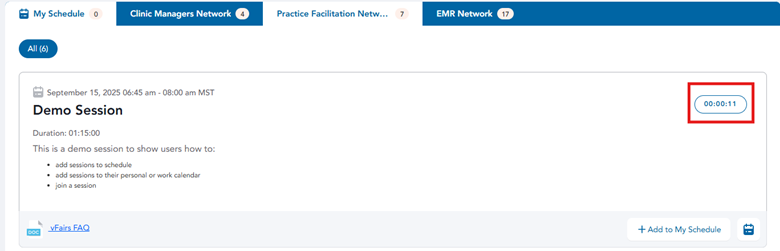
- If you are early to session, a countdown timer will indicate how much time is remaining before you can access the Zoom meeting.
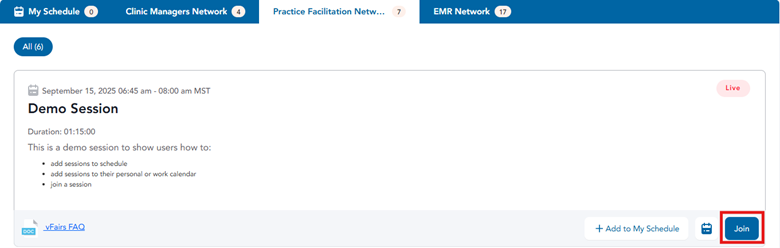
- Use the ‘Join’ button to enter the embedded Zoom meeting.
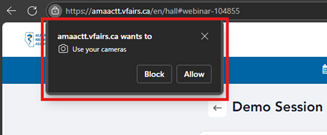
- Ensure you allow vFairs to use your camera and microphone.
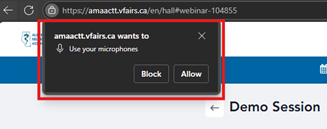
- Click 'Join'.
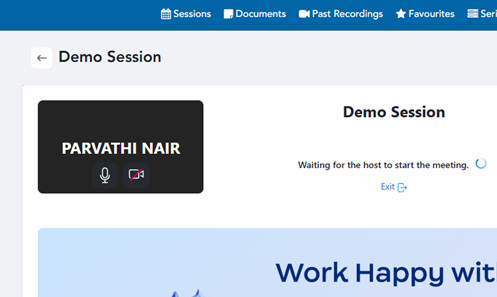
- If the host has not yet started the Zoom session, you will be allowed into the Zoom Waiting Room. If the host has started the Zoom session, you will join the live session.
- Access chatrooms by clicking on the drawer on the right of the screen.
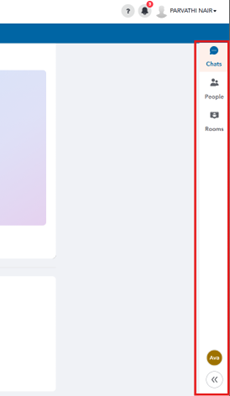
- Rooms tab will show you the group chats you have membership to comment on. People tab shows actively logged in users. Chats show message threads that you are actively participating in.
- Type a new message, reply to another user’s message, or share links, images, videos, and files in chatrooms.
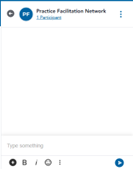
- To start a chat with a user, go to Search Users, find the user you are searching for and click Chat.
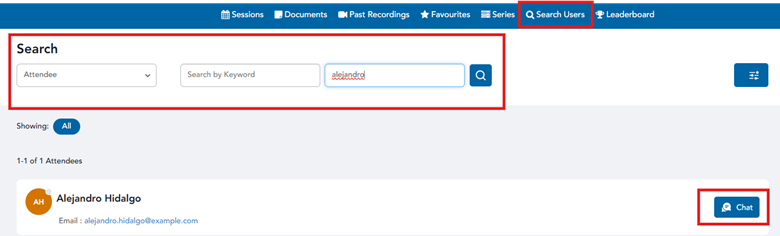
- Use user group chatrooms to discuss topics with all users or direct message a user.
- Web notifications will alert you to incoming chat messages. You may mute web notifications from the chat menu.
- Email notifications are coming soon!
- In the menu, select Sessions.

- Use the filter tabs to see sessions pertaining to a specific webinar series.
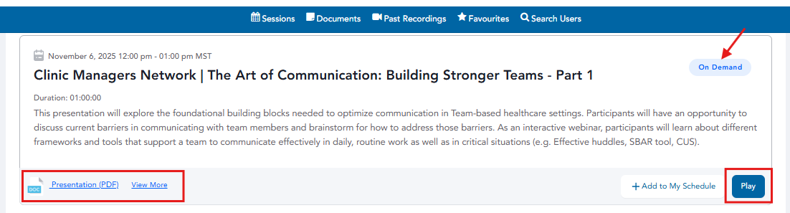
- Select the series, then scroll down to the on-demand sessions, find the session. Click on the 'Play' button or click on the link to view the session resources.
Use the Contact Us form on amaactt.vfairs.ca if you require help.