When should a patient be removed from a panel?
There may be times when a clinic will need to unpanel a patient from a provider’s panel in the Electronic Medical Record (EMR), in order to remove them from the provider’s CPAR panel.
Examples include:
-
Your clinic has received a Notification to Change Primary Care Provider letter from another clinic
-
A patient has notified your clinic that they are moving away or changing providers
-
The patient was accidentally paneled to the provider
-
The patient-provider relationship has ended, or changed such that the provider is no longer the most responsible provider
Any of the EMR options below will effectively remove a patient from a provider’s CPAR panel. Please ensure that you are using clinic-approved processes for unpaneling patients prior to making any changes in your EMR.
Note:
Removing a patient from a provider’s CPAR panel means the provider is confirming they are no longer the most responsible primary care provider, but it does not prevent the provider from continuing to provide other types of care (e.g. episodic or focused care) for this patient.
How-to instructions by EMR
Removing a Patient From Your Panel
Option 1:
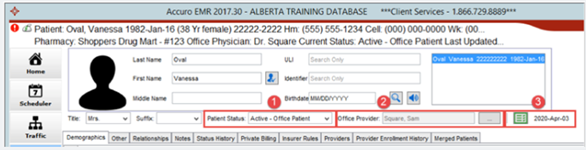
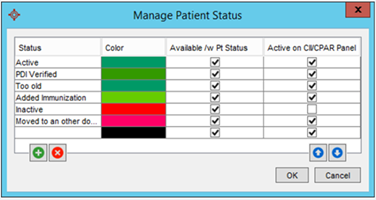
Change the Patient Status in the Patient Maintenance window to a status that is not CPAR-enabled. The patient will be removed from the CPAR panel at the next monthly upload.
Note: Clinics can configure Patient Statuses to be CPAR-enabled or not in the Manage Patient Status window. In the screenshot below, this clinic could choose the Inactive status to unpanel a patient (see red box around the empty check box). Your clinic may have other non-CPAR enabled statuses that can also be used to unpanel patients from CPAR while still allowing them to be seen at the clinic, for example as a walk-in only patient.
Option 2:
Another way the patient will not upload to CPAR is if you change the Office Provider to a blank field.
Removing a Patient From Your Panel
Option 1:
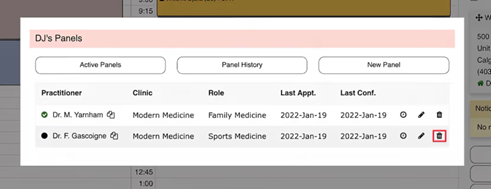
- Click on a panel or provider name listed in the patient’s demographics card. This will open the Panel Manager, where you can see all the panels that the patient is attached to.
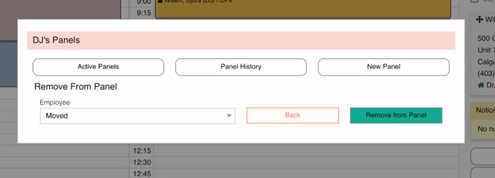
- Click on the garbage can beside the provider whose CPAR panel you wish to remove them from, select a reason from the drop-down menu
- Click Remove from Panel.
The patient will be removed from the CPAR panel at the next monthly upload. This option allows the patient to continue to be seen at the clinic if appropriate (e.g., as a walk-in only patient).
Removing a Patient From Your Panel
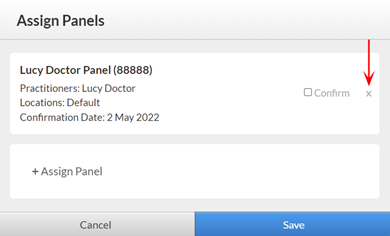
- From the dashboard view of the patient's chart click Assign Panels in the Assigned Panels widget
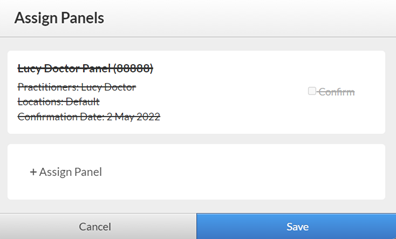
- Click the x next to the panel to remove the patient from the panel
- Click Save
The patient will be removed from the CPAR panel at the next monthly upload. This option allows for the patient to continue to be seen at the clinic if appropriate (e.g., as a walk-in only patient).
Removing a Patient From Your Panel
Option 1:
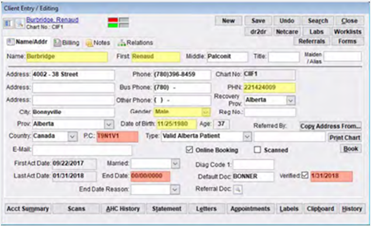
You can unpanel the patient by entering an End Date and any End Date Reason in the client card. The patient will be removed from the CPAR panel at the next monthly upload.
Option 2:
Change the Default Doc to a blank field. The patient will be removed from the CPAR panel at the next monthly upload. This option may be preferable when the patient will still be seen at the clinic (e.g., as a walk-in only patient).
Removing a Patient From Your Panel
Option 1:
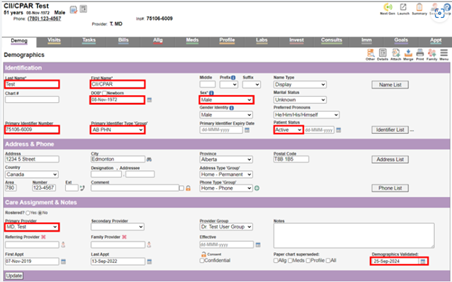
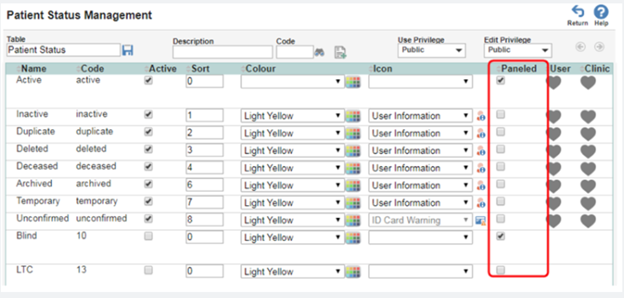
Change the Patient Status in the Patient Maintenance window to a status that is not CPAR-enabled. The patient will be removed from the CPAR panel at the next monthly upload.
Note: Clinics can configure Patient Statuses to be CPAR-enabled or not in the Patient Status Management window. In the screenshot below, the clinic could choose among the several statuses that have the “Paneled” column unchecked to unpanel a patient.
Option 2:
Another way the patient will not upload to CPAR is if you change the Primary Provider to a blank field.
Removing a Patient From Your Panel
Option 1:
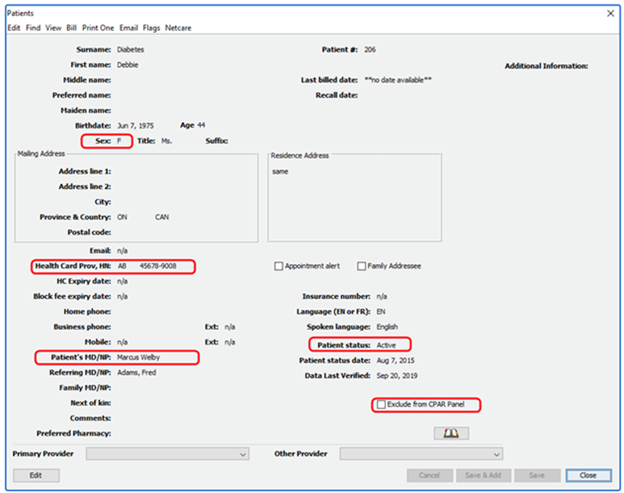
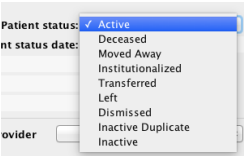
Change the Patient Status in the Patient Demographics window to a status to any status other than Active. The patient will be removed from the CPAR panel at the next monthly upload.
Option 2:
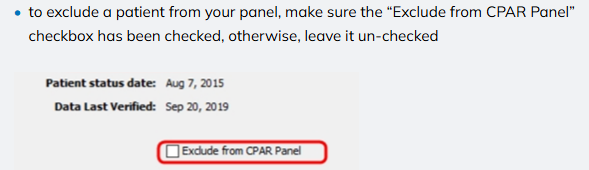
If the patient may continue to be seen at the clinic (e.g., as a walk-in only patient or for other services), you can leave the patient status as Active, and select the Exclude from CPAR Panel checkbox (see image below) in the Patient Demographics window.