To establish a clinical Alternative Relationship Plan (cARP), several forms must be completed on the Government of Alberta website. To ensure faster processing, forms can be completed electronically by ensuring that the required fields are completed correctly and that the information is easy to read when submitted.
Once the form is completed electronically, print and share with Participating Physicians for signature. Electronic copies can be circulated between physicians, but e-signatures are not allowed. Each physician must sign with a pen before submitting to PPHS. To expedite processing, forms can also be faxed, but the original hard copies must still be mailed.
Before completing cARP forms, which are listed on the right-hand side of this page, read our Form Completion Tips. This section will help you gather the required information and ensure your form is submitted successfully.
-
Step 1: Start Form
Click the form link to open it in your web browser.
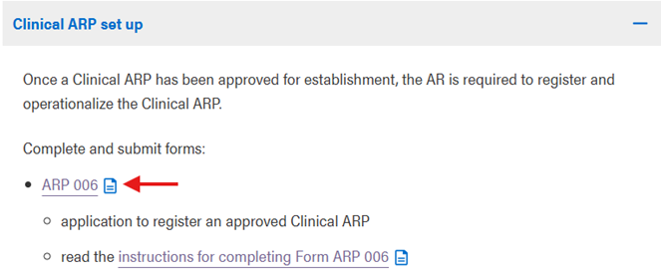
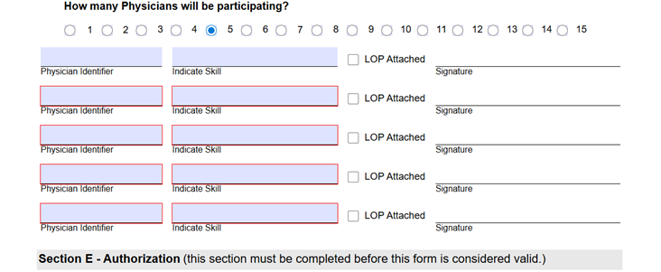
It’s important to complete the form in order, from top to bottom, as some early selections can change what appears later.
For example, selecting 5 physicians will add five new fields for each physician's details.
-
Step 2: Complete Dynamic Fields
- Blue-shaded fields can be filled by clicking and typing.
- Arrows show fields with dropdown lists - click to see the options
- When you see a calendar icon, click to open and select a date

-
Step 3: Saving Forms
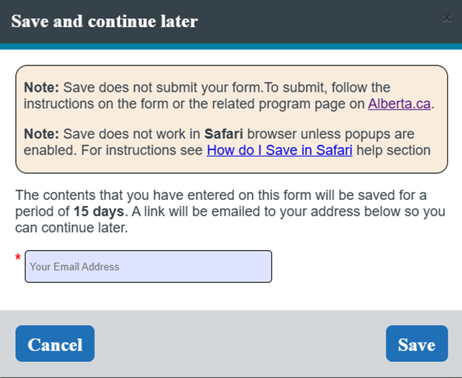
Click the floppy disk icon in the top right or click the Save button at the bottom of the form.


You can save your progress on the form at any time by clicking the floppy disk icon in the top right or clicking save at the bottom of the form. A link to the draft form will be sent to your email, and you will have 15 days to complete and submit. After 15 days, your progress will no longer be saved.If you select print version, a PDF of the form will be saved to your computer. Please note, this file will no longer be fillable, and you lose your partially completed online form.
-
Step 4: Printing & Submitting
When you’ve finished entering all required information, click the printer icon or the Print Version button to create a PDF. Once you do this, the PDF cannot be edited.


Print and sign the PDF, then scan and submit it via email to your policy analyst or fax it to PPHS's Alternative Compensation Delivery Unit: 780-422-5208.
Form Completion Tips
| FIELD | WHERE TO FIND |
| Program Name |
Schedule A: Conditions of Payment (CoP) Ministerial Order (Clinical) or Grant Agreement (Academic). |
| Program Type |
Conditions of Payment (CoP) Ministerial Order (Clinical) or Grant Agreement (Academic). |
| Effective Date & Contract End Date |
Conditions of Payment (CoP) Ministerial Order (Clinical) or Grant Agreement (Academic). |
| Submitter Prefix |
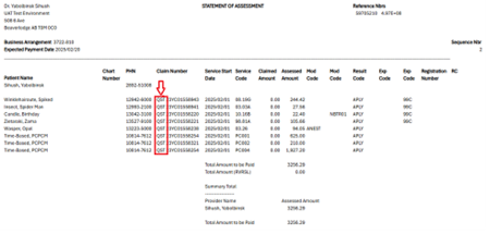
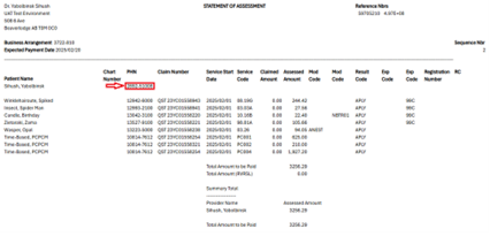
Provided by the Submitter or on the physician's Statement of Assessment - first three letters of claim number
|
| Payee ULI |
If the account manager is already registered with PPHS, they will have a ULI. If the account manager is new, PPHS will assign a ULI once the ARP006 form is submitted. |
|
Physician Identifier |
Physician’s Statement of Assessment
|
|
Program ID & BA |
Provided to the Authorized Representative by the PPHS analyst after the business arrangement is processed. |
|
Business Mailing Address |
If this is going to a specific office within a facility, include the office or suite number. Submit form ARP007 to update the address at a later date. |
|
College License Number |
CPSA License or Physician Directory (registration number) |
- Send Statement of Account/Assessment to: ARP Business Address
- Payment frequency:
- Annualized cARP - monthly
- Sessional - weekly or monthly
- BCM - semi-monthly (twice per month)
- Do not suppress the Statement of Assessment/Account
- If submitting the ARP007 form with the ARP006 form, there is no need to include the ARP Program ID or Program BA
- Never suppress statements
- If this is a subordinate (non-paying) BA, fill out Sections A, C and D.
- Select My PC/Other and add the business address if statements should be sent to this location and the clinic
- The Authorized Representative must also sign as a Participating Physician
- If a physician has a professional corporation, they must complete and sign as a Participating Physician AND as the Participating Corporation
- If that same physician is also an Authorized Representative, three signatures must be provided
- If submitting LoPs (form ARP008) with the ARP006 form, the ARP Program ID or Program BA does not need to be included
- Include a start and end date for locum coverage
- For temporary coverage, complete alongside form ARP011
- For regular coverage, the locum can sign as a Participating Physician, completing form ARP008 instead
- Completed this letter when the locum completes the participation letter