
Application Process
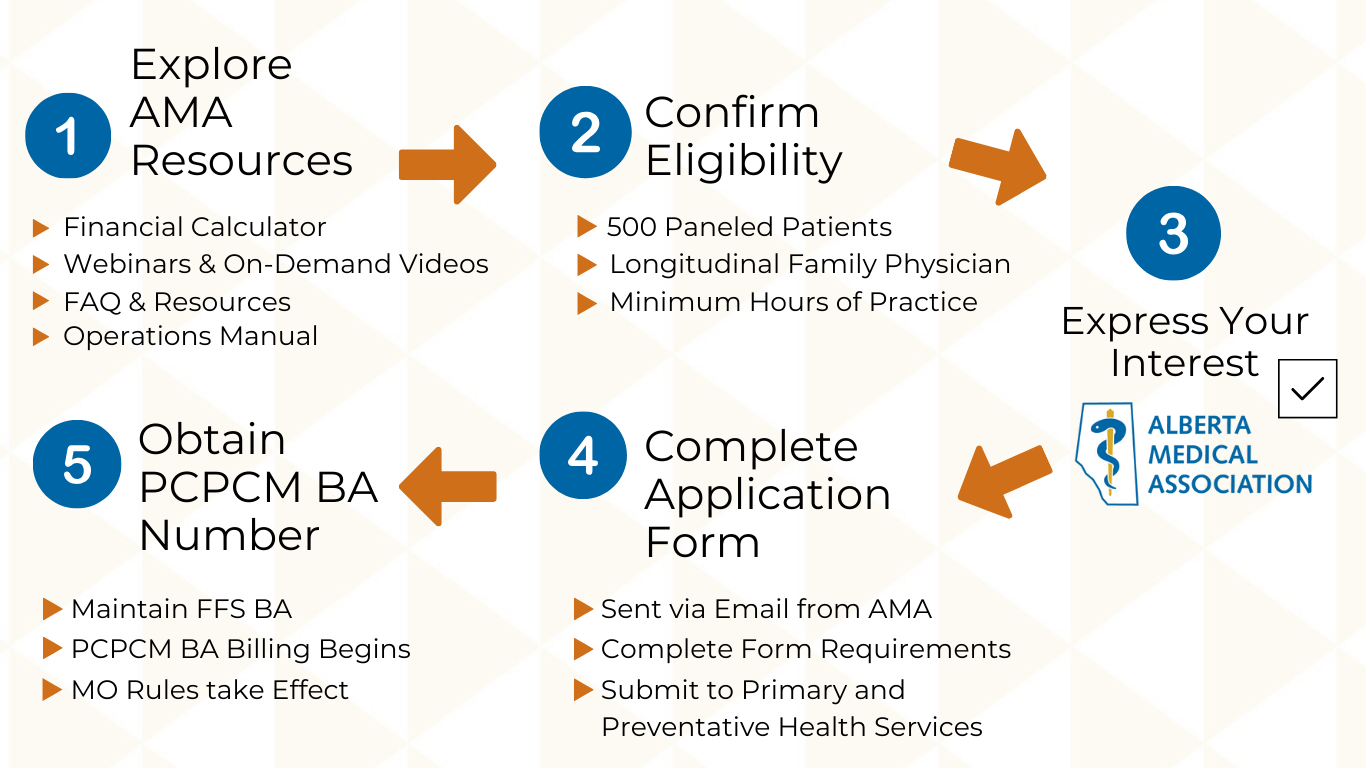
- Download the Form attachment and save it to your desktop.
- Via your desktop or Finder window, double-click or control-click to open with Adobe. If Preview is your system's default PDF reader, the file will not open. Please ensure you have the most up-to-date version of Adobe Reader on your Mac and select "Open with Adobe"

- Use Adobe to fill in the required fields
Type directly in the form and choose from the drop downs as appropriate.
eForms are "smart forms" that display new fields according to previously entered information. Please type all required information into the form and review for completeness. - When complete, click Save. Adobe will automatically save the completed form to the same folder, overriding the original file. You can also Choose a Different Folder to save both copies.
- Attach the completed form to your email and follow the application instructions.
You may also choose to click the SUBMIT button on the form. If it works correctly, it will autogenerate an email with the completed form attached using your email software.
*Additional help resources for Mac users available via Adobe
- Save the Form to your Computer
Move your cursor over the form, right click, select Save (target / link) As, choose folder on computer, name and save. - Open the saved Form
Navigate to the folder on your computer where the document was saved and right click, Open With- Adobe from there.
- Work directly in the Form
The PCPCM Application form will open for completion, type directly on the form and choose from the drop downs as appropriate.
eForms are PDF smart forms that will display new fields according to previously entered information. Please type all required information into the form and review for completeness before printing for authorization.
- When complete, click Save. Adobe will automatically save the completed form to the same folder, overriding the original file. You can also choose a Different Folder to save both copies.
- Attach the completed form to your email and follow the application instructions.
You may also choose to click the SUBMIT button on the form. If it works correctly, it will autogenerate an email with the completed form attached using your email software.
TIP: It is recommended you save the eForm using Adobe Reader after completing it in case changes are required at a later time.
*Additional help resources for PC users available via Adobe
Required: Most Up-to-date Adobe Reader Software
The device used to access the eForm must have the current Adobe Reader installed
If using old version, download the latest version of Adobe Acrobat. A free version of the software is all that is required.
NOTE: You may see this when you try to open the PCPCM Application Form:

Be sure to download the Form, save it to your desktop and open it in the Adobe Acrobat application. It will not open in an alternative PDF reader.

Banking Information
While the Application instructs physicians to attach their banking information using the Adobe paperclip embed tool, many applicants have experienced issues with the feature or have been informed by Primary and Preventative Health Services that the documents were not attached to submitted applications.
We recommend sending a separate email with your banking information to [email protected].
Include full name, email associated with the application and a description of the attached information in the body of the email.
Still Experiencing Issues?
Watch our Instructional video and explore the FAQ with additional support for Mac & PC users.
PDF Troubleshooting
Please ensure you have the most up to date version of the application form (PCN14743 Rev. 2025-02 in the bottom left corner of the document.)
A number of physicians have reached out with challenges. Please see this troubleshooting resource How to use PCPCM PDF Forms
The copy of the Ministerial Order you received as a secondary attachment titled MO50_2025 PCPCM Feb 20 2025 3.pdf is for your personal records and does not require filling out.
The PCPCM Clinic ARP Attestation/ Declaration required for Primary and Preventative Health Services' records is on form PCN14743 Rev. 2025-02 Section D of the PCPCM - Application attachment as seen below:

Please ensure you are filling out the correct version of the application form sent via email on or after 10 p.m. February 24, 2025. This is the most up to date version. It will have the form number PCN14743 Rev. 2025-02 in the bottom left of the document.
If you are having difficulty entering text to certain fields the appropriate check box above the area may not have been selected.

This opens the text fields to be edited.

You may be trying to fill out the Ministerial Order copy intended for your personal records and need to open the form PCN14743 Rev. 2025-02.
While the Application instructs physicians to attach banking information with the paperclip tool, we suggest you send the void cheque/banking documentation in a separate email to [email protected].
Include full name, email associated with the application and a description of the attached information in the body of the email.
Photo attachments are unlikely to be accepted, and you will receive communication from Primary and Preventative Health Services to complete the form electronically and resubmit.
Scanned forms are processed later than the electronic ones due to the manual requirements of processing. To ensure there is no discrepancy with your information, please try to submit your application in electronic form using Adobe Reader.
Submit your application to [email protected].
Do not cc the PCPCM inbox in this email.
Embed features in Adobe are not always consistent.
To avoid processing issues and delays, physicians should send their void cheque/banking documentation in a separate email to [email protected].
Include full name, email associated with the application and a description of the attached information in the body of the email.
Form Details
If you have multiple email addresses, you must use the email address linked to your AMA Member Dashboard to submit your PCPCM application to Primary and Preventative Health Services. That email address was used to verify eligibility and would have received the documents you need for your application submission. Applications received from alternate email addresses will be sent back for resubmission.
The Submitter ULI and Submitter Prefix Code are provided by H-Link, to physicians, or the person/organization who submits claims on their behalf. The Submitter ULI is a 9-digit number that is different from your Prac ID number. The Submitter Prefix Code contains three alpha-characters. This identifier is attached to your billing and claims documentation, you will likely find your Submitter Prefix on your Statement of Assessment documentation.

Claims are submitted electronically using H-Link electronic claims system
Here is the Physician Resource Guide with additional information on Primary and Preventative Health Services' website.
If you still can’t locate this information you may want to reach out to H-Link, or your accredited submitter attached to your Fee- for Service Business Arrangement.
The Practitioner Identification number is a unique nine-digit code, assigned by Primary and Preventative Health Services to individual practitioners. This number can be found on your Statement of Assessment or in your EMR provider configuration details.

Please use this resource to locate your Facility ID | AMA in your EMR. You can submit your WDFA as an alternative. This information is located in your Netcare “My Details”
Please use this resource to find your CPAR Panel ID | AMA . Alternatively, you can contact your CII/CPAR Panel Administrator for assistance.
Check either the ‘Practitioner’ or ‘Professional Corporation’ box under Section C. If the physician has a Prof Corp, include the legal name and banking information for the clinic. This does not need to match the banking information on your Prof Corp.
Clinics should consult an accountant with a thorough understanding of their specific structure for further guidance.
How to Resubmit
If you have multiple email addresses, it is important that you use the email address linked to your AMA Member Dashboard to submit your PCPCM application to Primary and Preventative Health Services. That email address was used to verify eligibility and would have received the documents you need for your application submission.
Applications received from alternate email addresses will be sent back for resubmission.
Embed features in Adobe are not always consistent.
Primary and Preventative Health Services requests that physicians re-send the void cheque/banking documentation in a separate email to [email protected].
Include full name, email associated with the application and a description of the attached information in the body of the email.